
How to recover deleted photos from an SD card on a Mac
Updated 13 October 2026
If you've deleted photos from an SD card, they are very likely still on it. Deleting a photo, whether in the camera or on a Mac, only marks its space on the card as free. The picture stays exactly where it was until something new is saved over it. This guide shows you how to recover deleted photos from an SD card on a Mac, what to do in the next few minutes to keep your chances high, and what decides whether a photo comes back.
Download Found Again free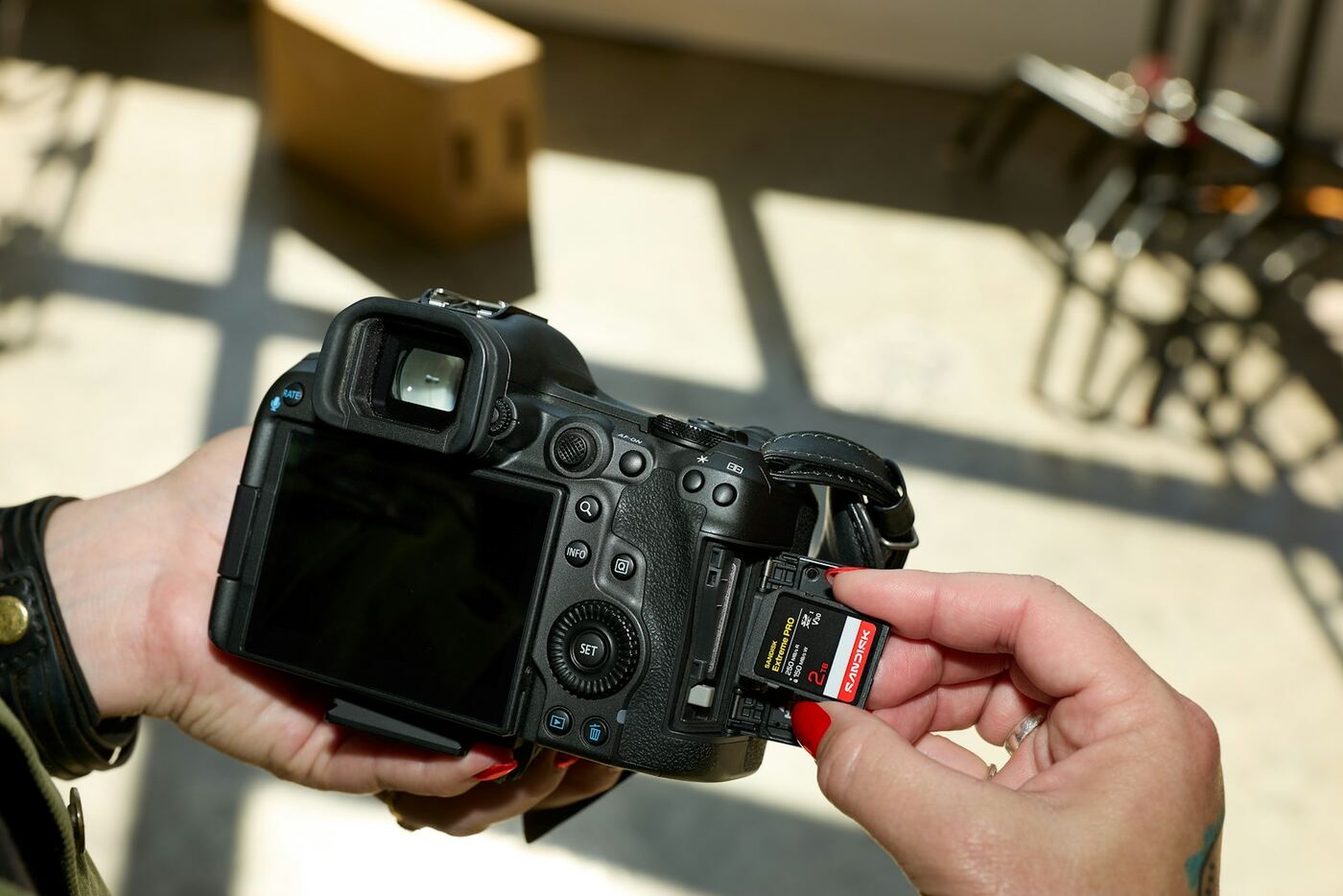
What to do right now
- Stop using the card. Switch the camera off and take the card out. Every new photo or video you take could land on top of one you want back.
- Don't format it. If the camera offers to format the card, say no. If your Mac says the disk isn't readable and offers to initialize it, click Ignore or Eject. Formatting makes recovery harder, and some formats wipe the card completely.
- Use a card reader. Your Mac's SD slot or a USB card reader both work. Most cameras connected with a USB cable only show up in Photos or Image Capture, and recovery apps can't read the card that way.
- Don't save anything to the card. Don't copy files onto it, and don't open and edit photos while they're on it.
- Check you have space on your Mac. Recovered photos go to a folder on your Mac, never back onto the card, so you'll need room for them.
Why deleted photos are usually still on the card
Almost every camera card uses one of two file systems. Cards up to 32 GB normally use FAT32, and larger cards use exFAT. Both keep a list of the files on the card, with each file's name, date, size and where it starts.
When you delete a photo, the camera or Mac marks that entry in the list as deleted and marks the photo's space as free. The picture itself is left alone. Right after a deletion, the photo is usually intact, and its old entry often still holds the original name and date.
Recovery works in two ways. The first reads those deleted entries, so files come back with their names, folders and dates. The second ignores the list and reads the whole card, recognizing photos and videos by what's inside them. That second method still works after the list has been wiped, for example after a format.
Because the photo's space is marked free, the next photo you take may be written right over it. That's why stopping straight away matters more than anything else in this guide.
How to recover deleted photos from an SD card with Found Again
Found Again is a free Mac app built for this job. It only reads the card, it has no file limits, and it never connects to the internet. It runs on macOS 14 Sonoma or later, on Apple silicon and Intel Macs.
- Download and open Found Again. It's signed and notarized by Apple, so it opens like any other app. There's no account to create.
- Insert the card. Put it in your Mac's SD slot or a USB card reader. The card appears in Found Again's list by itself. microSD cards work the same way with an adapter or a microSD reader.
- Click Scan. macOS asks for your Mac's password. That's macOS's own password box, and it lets macOS open the card read-only for Found Again. You're asked once per scan.
- Let the scan run. The card disappears from Finder while it's being scanned. That's deliberate. Found Again unmounts it so macOS can't write search indexes or other files onto it during recovery.
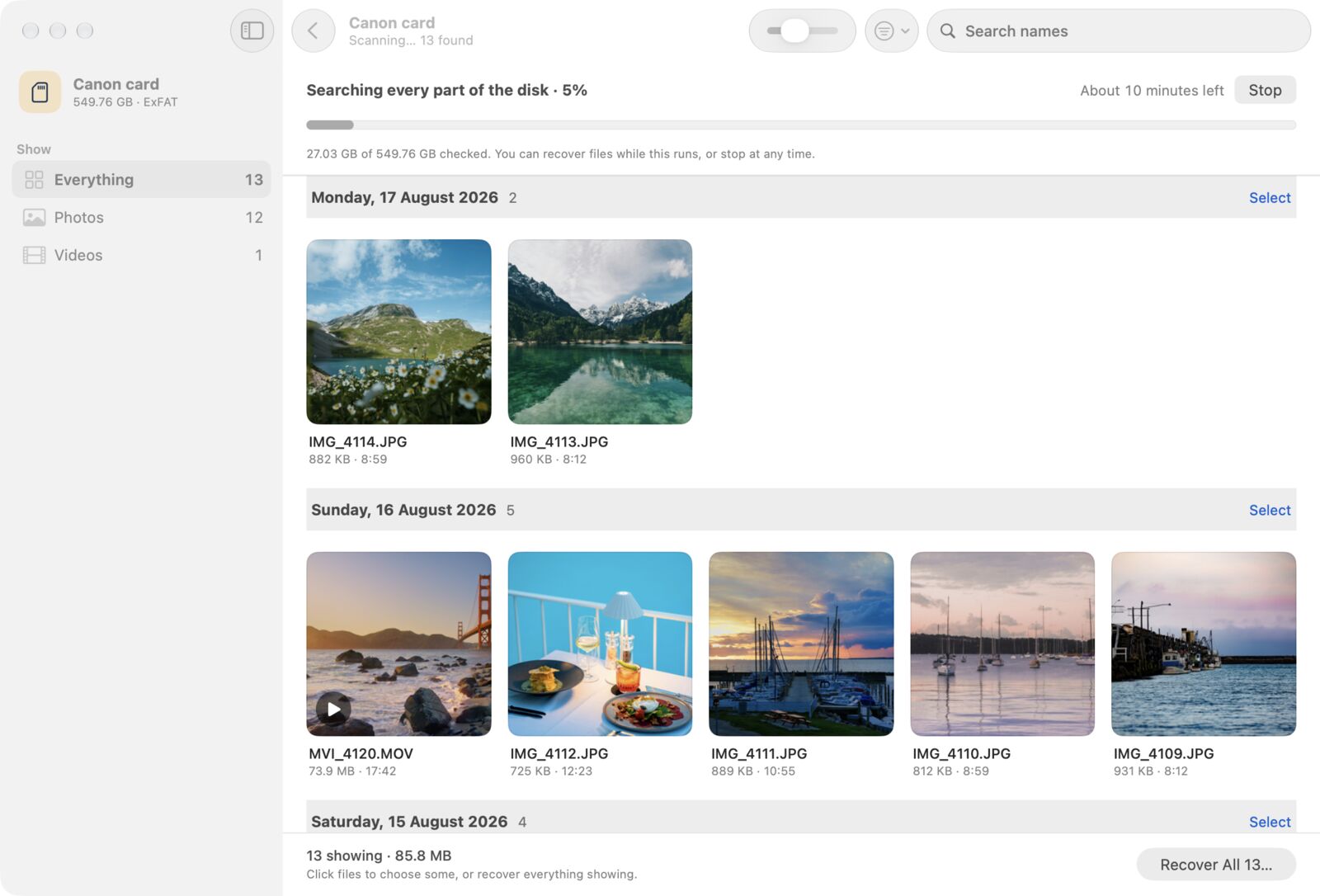
- Watch the results arrive. Found Again first reads the card's file records, which is very fast and usually brings deleted files back with their original names, folders and dates. Then the deep scan reads every sector of the card and finds photos and videos by their contents. Results appear as they're found, with thumbnails grouped by day.
- Choose what you want. Filter by Photos, RAW, Videos, Audio or Documents, select the files, or select everything showing.
- Click Recover and pick a folder on your Mac. Found Again won't save files back onto the card you're recovering from. You can recover at any time, even while the deep scan is still running.
If macOS shows a privacy message instead of scanning, Found Again shows you how to allow it in System Settings › Privacy & Security › Full Disk Access. You only need to do this once.
How long it takes
Reading the file records takes very little time. The deep scan reads the whole card, so it depends on the card's size and your reader. As a rule of thumb, allow 1 to 3 minutes per 10 GB with a USB 3 card reader, and longer with an older USB 2 reader. A 64 GB card typically takes somewhere between 6 and 20 minutes. You don't have to wait for the end before recovering what's already been found.
What the file names mean
Photos found through the card's file records keep their camera names, such as IMG_0042.JPG or DSCF1234.RAF, in their original folders. Photos found by the deep scan have no record left to name them, so Found Again names them by the date and time they were taken, like 2024-06-01 14.30.00.jpg, along with the camera model (Canon EOS R6, for example).
Partial and Damaged files
Some files are marked Partial or Damaged. Partial means part of the file couldn't be traced, so it may open with missing sections. Damaged means the start of the file has been overwritten, so it probably won't open. Usually that's because new photos or videos were saved over part of the old file, or because a long video was stored in pieces.
If the card has unreadable spots, Found Again keeps going. It fills the parts it can't read with blanks and lists the affected files in a note saved alongside your recovered files.
What affects your chances
- How much the card was used afterwards. Each new photo or video can overwrite deleted ones. A card with plenty of free space and few new shots gives the best results.
- How the photos were lost. Deleting photos, one at a time or all at once, leaves the most behind. A normal format removes the names but usually leaves the photos. A full or low-level format in the camera wipes the card.
- File size. Photos are small and usually stored in one piece. Long videos on a big, well-used card can be split into pieces scattered across the card, and those sometimes come back Partial.
- The card's file system. FAT32 and exFAT, used by nearly all camera cards, give the best results, including original names. See the camera-by-camera guides for where each brand keeps its files.
- The card's condition. A few bad sectors won't stop a scan. A card that's cracked, or that no reader detects at all, needs a professional recovery service.
- Encryption. A card that a phone set up as encrypted internal storage can't be scanned.
If the photos aren't there
- If the card doesn't appear at all, try a different card reader or USB port.
- If you imported the photos to your Mac before deleting them, look in Photos › Recently Deleted, where they're kept for 30 days. Our guide to files deleted from a Mac's own drive covers the other places to check.
- If you sent photos to your phone with the camera maker's app, they may still be in your phone's photo library.
- If you shot to two cards at once, the other card may still have copies.
Other free options
PhotoRec is free and capable, but it runs in Terminal and gives recovered files generic names. Our PhotoRec on Mac guide explains how to use it. Most other recovery apps let you scan for free and then charge to save the files; our comparison of Disk Drill and the alternatives lists what each one's free version really does.
Avoiding this next time
- Copy photos to your Mac and check they open before deleting anything from the card.
- Once the files are safely copied, format the card in the camera instead of deleting photos one by one. This also helps keep future videos in one piece.
- Keep a second copy of anything important, for example with Time Machine or on an external drive.
Questions
Can I recover deleted photos from an SD card for free?
Yes. Found Again is free with no limits, so you can scan the card and save every file it finds without paying. PhotoRec is also free if you're comfortable using Terminal.
Can I recover photos I deleted weeks or months ago?
Often, yes. Time on its own doesn't erase anything. What matters is whether new photos or files have been saved over the deleted ones since. A card that has sat in a drawer is a good candidate, even months later.
Does this work for microSD cards from phones, drones and action cameras?
Yes, as long as you take the card out and read it with a card reader or a microSD adapter. A phone connected to the Mac by cable can't be scanned, and a microSD card that an Android phone set up as internal storage is encrypted, so it can't be scanned either.
Why doesn't my camera show up when I connect it to my Mac?
Most cameras connected by USB cable appear only in apps like Photos or Image Capture, not as a disk, so recovery software can't read the card. Take the card out and use your Mac's SD slot or a card reader instead.
Will recovery change anything on the card?
No. macOS opens the card read-only, Found Again unmounts it during the scan so macOS doesn't write to it, and recovered files are always saved somewhere else.