
Can you recover deleted files from a Mac's internal SSD?
Updated 13 October 2026
Usually not by scanning the drive. When you delete a file from your Mac's internal SSD and it leaves the Trash, the SSD erases that space automatically, and the drive is encrypted all the time. Recovery apps can't get a deleted file back from it in any reliable way. The good news is that a copy often survives somewhere else, such as Recently Deleted, iCloud, Time Machine or the app you made it in. This page explains why scanning a Mac's SSD doesn't work, and how to check each of those places, step by step.
If the files were ever on a memory card, USB stick or external drive, that's a different story. Those can usually be scanned, and Found Again does it for free.
Download Found Again freeWhy deleted files on a Mac's SSD can't be scanned back
1. TRIM erases deleted data
On a hard disk, deleting a file only marks its space as free, so the data sits there until something overwrites it. That's what makes recovery from memory cards and hard drives possible.
SSDs work differently. macOS tells your Mac's SSD which blocks are no longer in use, using a command called TRIM, and the SSD erases those blocks in the background so they're ready for new data. Apple's SSDs have TRIM turned on by default. Once a block has been erased, the data that was in it no longer exists. No app, however clever, can read back what isn't there.
2. The drive is always encrypted
Every Mac with Apple silicon, and Intel Macs with the Apple T2 Security Chip (found in many Intel models from 2018 to 2020), encrypt the internal SSD all the time, even with FileVault turned off. The keys are held by the Mac's own security hardware. Turning on FileVault ties those keys to your password as well.
This protects your files if your Mac is lost or stolen. It also means the drive's contents can't be read on another machine, so there's no way around the Mac's own protections to get at old data.
3. macOS protects its own drive
Apps that offer deep scans of a Mac's internal drive ask you to lower your Mac's security first. Typically that means restarting into macOS Recovery and either turning off System Integrity Protection or switching to Reduced Security, so the app can load a kernel extension. Those settings exist to stop malware from getting the same low-level access.
Lowering them doesn't undo TRIM. If the SSD has already erased the blocks, extra access doesn't bring them back. That's why Found Again doesn't scan your Mac's internal drive, and why we suggest checking the places below before changing any security settings.
Where to look instead
Work through these in order, starting with the quickest to check.
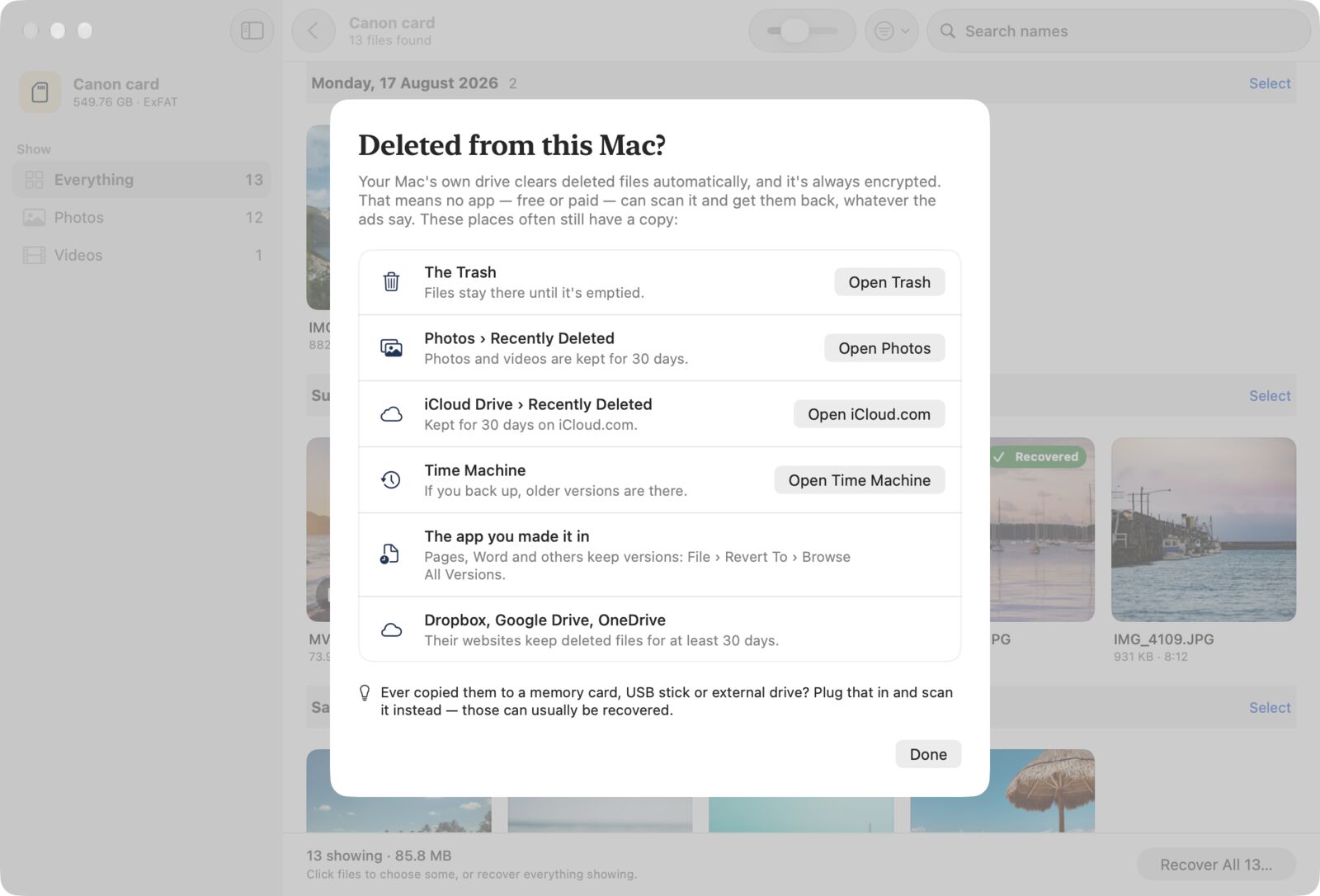
The Trash
- Click the Trash at the end of the Dock.
- Find your file. You can use the search field in the Trash window.
- Control-click the file and choose Put Back to return it to where it was, or drag it to the desktop.
Files stay in the Trash until it's emptied. If "Remove items from the Trash after 30 days" is turned on in Finder › Settings › Advanced, older items are removed automatically. Files deleted with File › Delete Immediately (Option-Command-Delete) skip the Trash entirely.
Photos › Recently Deleted (30 days)
Photos and videos you delete in the Photos app are kept in Recently Deleted for 30 days.
- Open Photos.
- In the sidebar, find Recently Deleted under Utilities. If you can't see it, hold the pointer over Utilities and click the arrow that appears.
- Unlock the album with Touch ID or your login password.
- Select the photos and videos you want, then click Recover.
If you use iCloud Photos, the same album is on your iPhone (Photos › Utilities › Recently Deleted) and at iCloud.com (Photos › Recently Deleted in the sidebar). Recovering it in one place restores it everywhere.
iCloud Drive › Recently Deleted (30 days on iCloud.com)
Files deleted from iCloud Drive can be recovered on the web for 30 days. This includes your Desktop and Documents folders if "Desktop & Documents Folders" is turned on for iCloud Drive.
- On your Mac, check the Trash first, as above.
- In a web browser, go to icloud.com/iclouddrive and sign in with your Apple Account.
- Choose Recently Deleted in the sidebar. If the sidebar is hidden, open it from the button at the top left.
- Select the files and choose Recover, or choose Recover All.
If the file isn't there, go to icloud.com/recovery, click Restore Files, select what you need and click Restore. Apple notes that changing iCloud Drive while a restore is running can interrupt it, so leave it alone until it finishes. Recovered files go back to the folders they came from.
Time Machine
If you back up with Time Machine, older copies of your files are on the backup disk.
- Connect your backup disk if it isn't already.
- Open a Finder window for the folder the file was in, such as Documents. For files on the desktop, skip this step.
- Click the Time Machine icon in the menu bar and choose Browse Time Machine Backups. You can also open Time Machine from your Applications folder.
- Use the arrows and the timeline on the right to go back to a time before you deleted the file.
- Select the file and click Restore. It goes back to its original location.
If the Time Machine icon isn't in your menu bar, open Time Machine from your Applications folder instead.
The app you made it in
If you lost the latest version of a document, or deleted part of one, the app may have older versions. In Pages, Numbers, Keynote, TextEdit, Preview and many other Mac apps, open the document and choose File › Revert To › Browse All Versions. Apps that save to the cloud, such as Microsoft 365 with OneDrive or Google Docs, keep their own version history on their websites.
Other cloud services
Dropbox, Google Drive and OneDrive all keep deleted files for a while, often 30 days or more depending on your plan. Look for Deleted files, Trash or Recycle bin on their websites.
Other apps and other copies
- Notes has its own Recently Deleted folder, and Mail moves deleted messages to its Trash mailbox.
- Search Mail and Messages for attachments you sent or received.
- Check where the file came from: the camera card, a phone, a USB stick, or a colleague's copy.
- Make sure it was really deleted. Search for its name with Spotlight (Command-Space), or look in Finder's Recents. Files are often just saved somewhere unexpected.
If a copy ever went onto a memory card, USB stick or external drive, scan that. Deleted files on those are usually recoverable. See recovering photos from an SD card or recovering files from an external drive.
Older Macs with a hard disk inside
Some older iMacs and Mac minis have a spinning hard disk or a Fusion Drive inside. A hard disk doesn't use TRIM, so deleted files may stay on it for a while. Your Mac writes to its startup disk constantly, though, so every minute it's running lowers the odds. If the files matter, shut the Mac down and get advice from a data recovery service before using it further. Found Again doesn't scan internal drives, including these.
Making sure it doesn't happen again
- Turn on Time Machine with an external drive. It's built in and costs nothing beyond the drive.
- Use iCloud Drive or another cloud service for important documents, so deleted files have a 30-day safety net.
- Leave the Trash alone for a few days before emptying it, or turn off automatic emptying.
Questions
Can I recover permanently deleted files on a Mac without a backup?
From the Mac's internal SSD, almost never. Check the Trash, Recently Deleted in Photos, iCloud.com and the app's version history first. If the file was also on a memory card, USB stick or external drive, scan that instead, as those keep deleted data much longer.
Some apps say they can recover files from my Mac's SSD. Are they wrong?
They can sometimes find files that haven't been erased yet, but they need you to lower your Mac's security to do it, and they can't get past TRIM. Before you change security settings, check the places on this page. They're more likely to have your file.
Does turning off FileVault make recovery possible?
No. On Apple silicon and T2 Macs the internal SSD is encrypted whether FileVault is on or off. FileVault adds your password to the protection.
How long do deleted photos stay in Recently Deleted?
30 days. After that, Photos deletes them permanently. If you empty the album or delete items from it yourself, they're removed straight away.
Can Found Again scan my MacBook's drive?
No. Found Again only scans memory cards, USB sticks and external drives. If you tell it the files were deleted from your Mac, it explains why it can't scan your Mac's own drive and points you to the places listed above.